
Registration settings and fields
When each item sells, the questions guests answer, and the deadline for finishing their details.
When registration opens and closes, and the questions a guest answers, are set on each item, not on the event. The Registration page under Event Settings holds capacity pools.
When an item sells
On the item, open Advanced Settings and set the Sale Window.
Start selling defaults to When event is published. Stop selling defaults to When the event day begins, which is 11:59 PM the night before in the event's time zone. An add-on defaults to When the event ends instead. Either can be Days before the event or a Specific date & time.
The relative choices move with the event date. A specific date does not.
Tickets and add-ons also have Keep selling on event day on the item. It is on for a new add-on and off for a new ticket.
Before sales start, the button reads Coming Soon. After they stop, Sale Ended. At zero capacity, Sold Out.
Custom fields
Participant Fields on an item are the questions for each person who buys it. Add Field opens your organization's field library, where a field is defined once and attached to any item. Create New Field adds one to the library.
Fields come as text, a text area, a dropdown, radio buttons, checkboxes, a single checkbox, a number or number range, phone, email, address, date, and time. The type cannot be changed once the field exists. Company Logo and Team Logo are image fields already in the library.
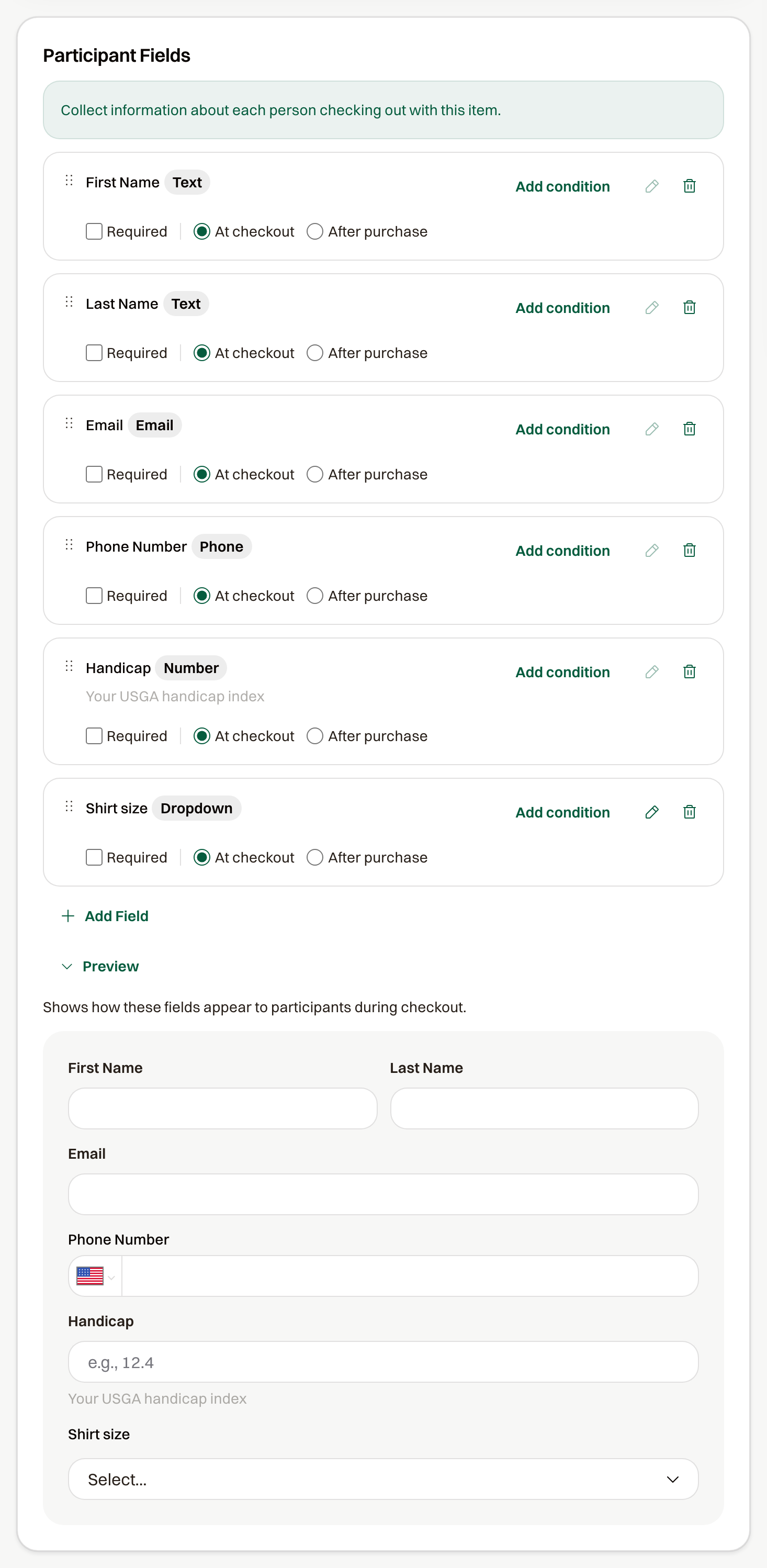
Required, at checkout, or after purchase
- Required means the guest must answer before paying.
- At checkout shows the field during checkout.
- After purchase leaves it off checkout. The guest fills it in from their registration link, and ChipIn emails them to finish.
These three are set per item. Editing the field itself, such as its label or options, changes it on every item it is attached to.
Show a field only for some answers
Add condition on a field opens Show this field when. Pick an earlier field on the same item, an operator, and a value.
- A dropdown or radio field: is, is not, is one of, is not one of.
- A checkbox: is checked, is not checked.
- A number or date: is before, is after, is between.
A text area cannot be the source, and a condition cannot look at a field on a different item.
Who answers
A golfer, player, or ticket item asks once per person, including each spot in a foursome. A sponsorship, package, or team asks once per purchase, and the people included on it answer on their own items.
The deadline for finishing details
Participant info deadline on the item is when the guest's registration link stops accepting edits. It defaults to 2 weeks before event, and the choices run from At event start to a custom number of days. After it passes, the guest's page says "Changes are no longer available. Contact the organizer for assistance." You can still edit anyone's details from Participants.
Registration intro
The text above the registration options is Introduction Text, under Public Website > Homepage > Registration.
Common questions
Where do I close registration for the whole event?
On each item, under Stop selling. There is no event-wide switch, so items can close at different times. To close everything at once, set the same date on each item, or set each item's status to Draft.
Can I use the same question on two items?
Yes. Attach the same library field to both. Each guest answers it on the item they bought, and Required and At checkout are set separately on each item.
I added a question after people registered. Who answers it?
Guests who open their registration link see the new field and can fill it in until the deadline. Nobody is emailed about it on its own; send a message asking them to open their registration link.
Can I ask the sponsor something different from the golfers?
Yes. Fields on the sponsorship item are asked once, of the sponsor. Fields on the golfer item are asked of each golfer, including the ones a sponsorship includes.
A guest never finished their details
They can open View Your Registration from their confirmation email until the deadline. After that, edit the details yourself from Participants, or resend the link and extend the item's deadline.
Does changing the event date move the sale windows?
The relative ones, yes: When event is published, Days before the event, When the event day begins, and When the event ends all follow the new date. A Specific date & time stays where you set it.