Public website
What each homepage section controls, where images go, and how to preview with View Website.
The homepage is what guests open to learn about the event and register. Edit it under Public Website > Homepage.
Select View Website in the top bar to open the site in a new tab. While the event is still a draft, that link is open to signed-in members of your organization.

Brand color and the hero image
Brand Color colors buttons and accents, including the schedule block. Reset restores the default. Event Image is the large photo behind the event name, date, and venue name.
About and the cause
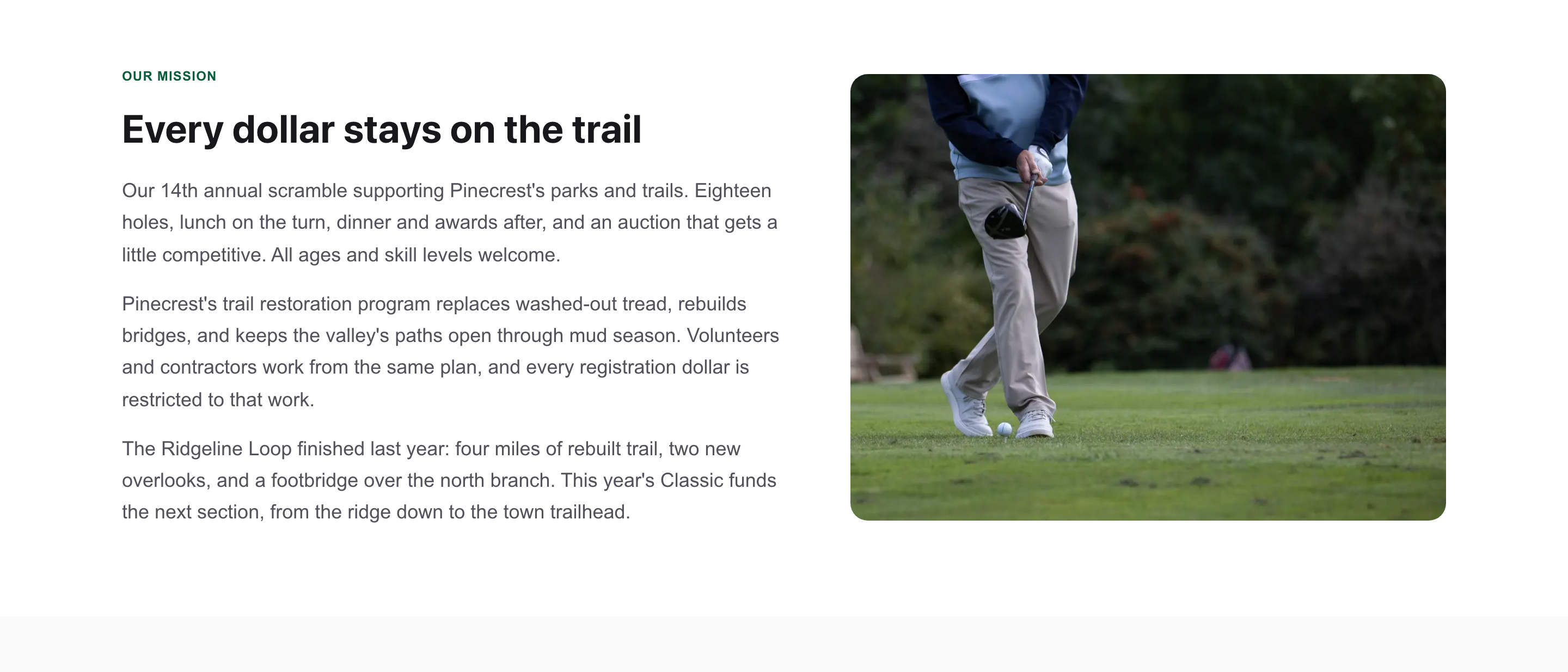
Turn About on for a section the website titles Our Mission. Headline is the heading. Cause Story is the text under it.
Cause Image sits beside that text. The section stays hidden until there is a headline or a story.
Registration intro
Introduction Text, under Registration, appears on the homepage under the registration button. Leave it empty and guests only see the button.
FAQ, photos, and sponsors
Turn FAQ on and select Add FAQ Item. Guests see Frequently Asked Questions once there is at least one item.
Turn Photo Gallery on to show up to 12 photos. The section appears once a photo is saved.
Our Sponsors appears when the event has sponsorship items, or when a sponsor has purchased. Logos come from the sponsor records.
Supporters Page is a separate page about those sponsors, linked from the homepage.
The day's agenda uses the Schedule toggle here. The sessions themselves are added under Schedule.