
Use your own domain
Point a domain you own at the public website, then verify it or remove it.
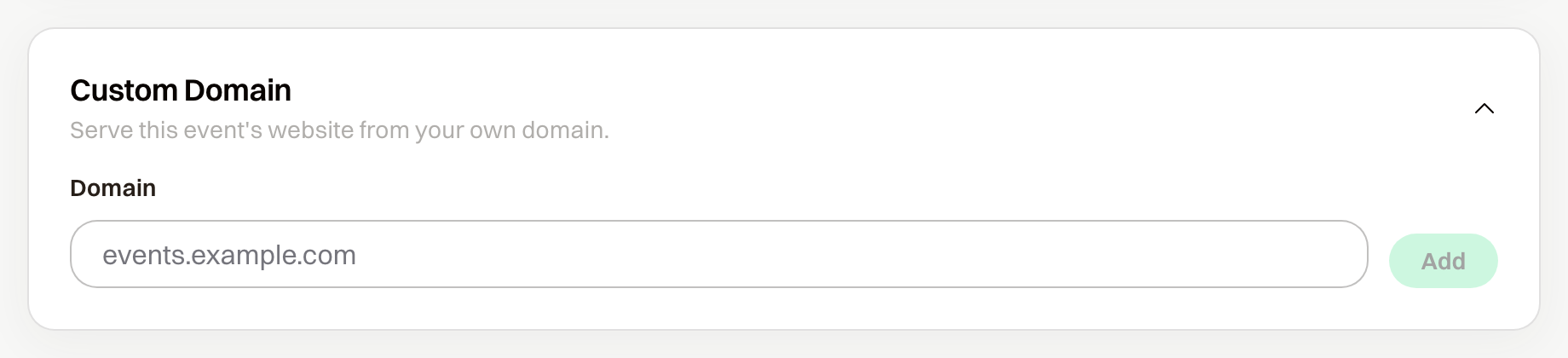
A custom domain serves this event's public website on an address you own. The ChipIn address keeps working beside it. The card is on Public Website, under Custom Domain, and organization admins manage it.
Custom domains are available once the event is activated. Until then the card says so and links to Activate this event.
Enter the Domain and choose Add. Use the hostname, such as events.example.com.
At your DNS provider, add exactly the record the Custom Domain card shows: Type, Host, and Value. Value may be labeled Target, Points to, or Content.
Choose Check status. The card reads Waiting for DNS until the record is found. It can take a few minutes, and up to an hour.
What record do you add?
Add exactly the Type, Host, and Value the Custom Domain card shows, at your DNS provider. If the domain is claimed elsewhere, the card also lists TXT records. Add those, then choose Check status again.
What do guests see while it is pending?
Until Check status succeeds, the domain does not open the event. A visitor who reaches ChipIn on that address before then is sent to chipinpro.com.
What do guests see once it is verified?
An unpublished event shows Coming soon, with the event name and date. View Website still opens the ChipIn address. After you publish, guests see the public website.
What happens when you remove it?
Remove takes the domain off immediately. The confirmation says links or QR codes already sent with this domain will stop working.
What does Unassign do?
Unassign leaves the domain on the organization and takes it off this event. A visitor sees "No event is currently available at this address." Point it at an event later from Or use a domain your organization already owns.