
Find and view orders
The Orders list is where you find a guest's purchase and open it.
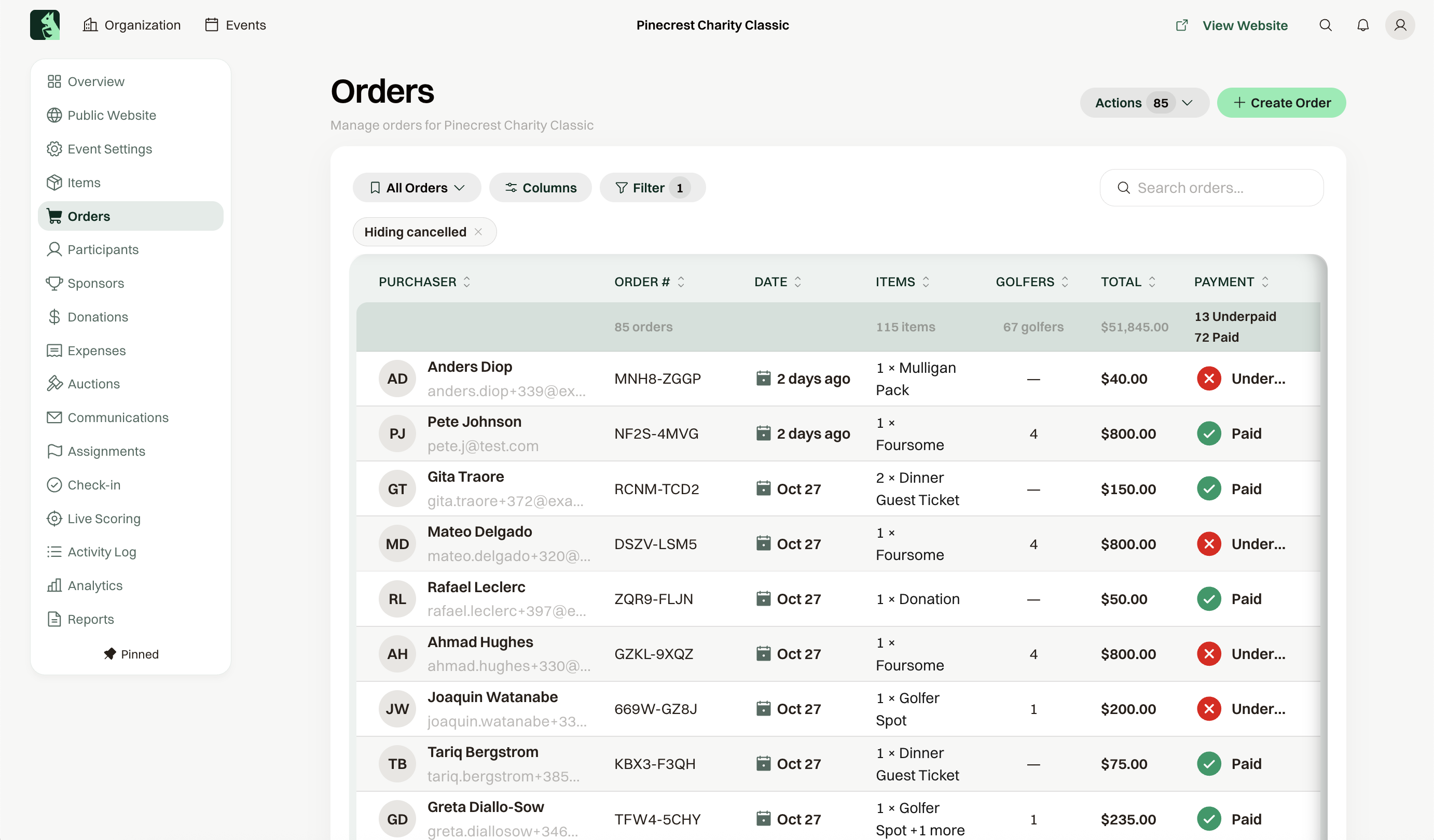
Search Orders for a name, email, or order number, or open Filter to narrow by order status, payment, item, source, and date. Cancelled orders stay off the list until Show cancelled orders is on. Click a row to open the order: who bought, the items, what was paid, and the balance in Due.
What the statuses mean
Paid means the money received matches the total. Underpaid means some or all of it is still due, which is how a Pay Later registration looks until you collect it. Overpaid means they paid more than the total, and you return the extra with Refund.
Processing means a payment has not settled yet. Unpaid is an auction win that has not been paid. While an order is Underpaid and still has a balance, Collect Payment shows that amount.
Send the confirmation again
Open the order and choose Send email. Under Template (optional), pick Order Confirmation, then Send. When a balance is still due and the event can take a card online, that same list includes Payment Request.
Send a receipt for one payment
Open the order and choose View payment details. Each payment row has a ... control that asks "Send payment receipt to" the purchaser's email; Send emails it. The receipt lists the amount, the method, the date, and the order's items.
A refund row offers the refund confirmation the same way.
A receipt goes out on its own for a payment-link payment and for an auction charge. A card paid at checkout, or a check you record, sends the order confirmation instead, so use this control when a guest asks for a receipt for that payment.
Common questions
A cancelled order is missing
Open Filter and turn on Show cancelled orders. A cancelled order that still has money to return shows Refundable and the amount in Due.