
Change an order
Change an order when a guest needs a different item, name, or quantity.
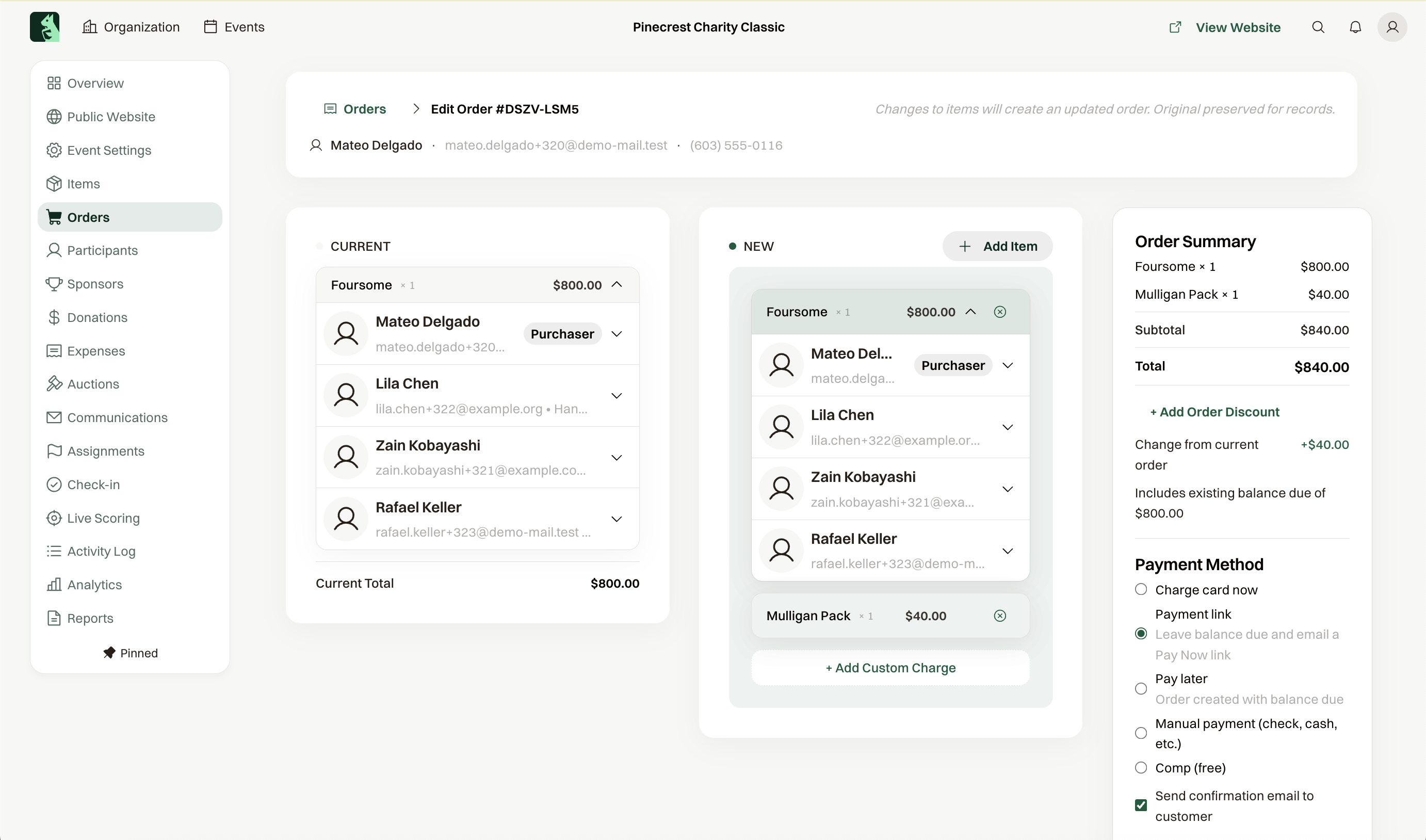
Edit Order opens the purchase so you can add or remove items, change a quantity, update who is registered, add a discount or an extra charge, or fix a price. To remove the registration entirely, cancel it instead. Saving replaces the order you opened. You land back on the updated order, and the earlier version leaves the list.
What happens to the balance
When the new total is higher, Payment Method asks how to collect the difference. Charge card now or Card on file charges it, and the button shows the amount you are about to charge. Pay later leaves the difference due, and Payment link leaves it due and emails a Pay Now link when the event can take payment online.
Manual payment (check, cash, etc.) records money you already have, and outside the US that label says cheque. When the new total is lower, the page says the order is overpaid and to refund it from the order after you save. Saving does not return the money, and if nothing is owed either way the button is Update Order.
What the guest receives
The guest gets an email with the event name and order number in the subject. Send confirmation email to customer is on by default.
Common questions
Where did the original order go?
Saving an edit creates a new order with a new order number. The original is kept for your records but leaves the list, so search for the purchaser's name to find the updated one.