
Team registration and rosters
How a Team item collects a roster, and how players who registered alone get onto a team.
A Team item is one entry with a roster. Create a Player item first. Players on this team is that item, and each roster spot is one of those players.
Minimum players and Maximum players set the size, and the minimum cannot be higher than the maximum. Collect captain stays off until you turn it on. Under 6 players the buyer can name one captain, and at 6 or more, two.
Checkout says "You can name a captain." or "You can name up to two captains." One more than that shows "One captain max" or "Two captains max." Team Information collects Team Name once, at checkout.
At checkout the buyer fills Team information, including Team Name.
When the minimum and maximum differ, How many players? sets the size for this purchase. It starts at the minimum.
Each person is Player 1, Player 2, and so on. The star marks Team captain.
The confirmation has View Your Registration. On Your Registration, an empty spot says "Click to add details". Edit and Save fill a name, and How many players? can go up to the maximum.
Teams lists every purchased team. A player who bought a Player item and is not on a roster sits under Free agents, and none yet reads "No unassigned players." Assign to team places that player on a team.
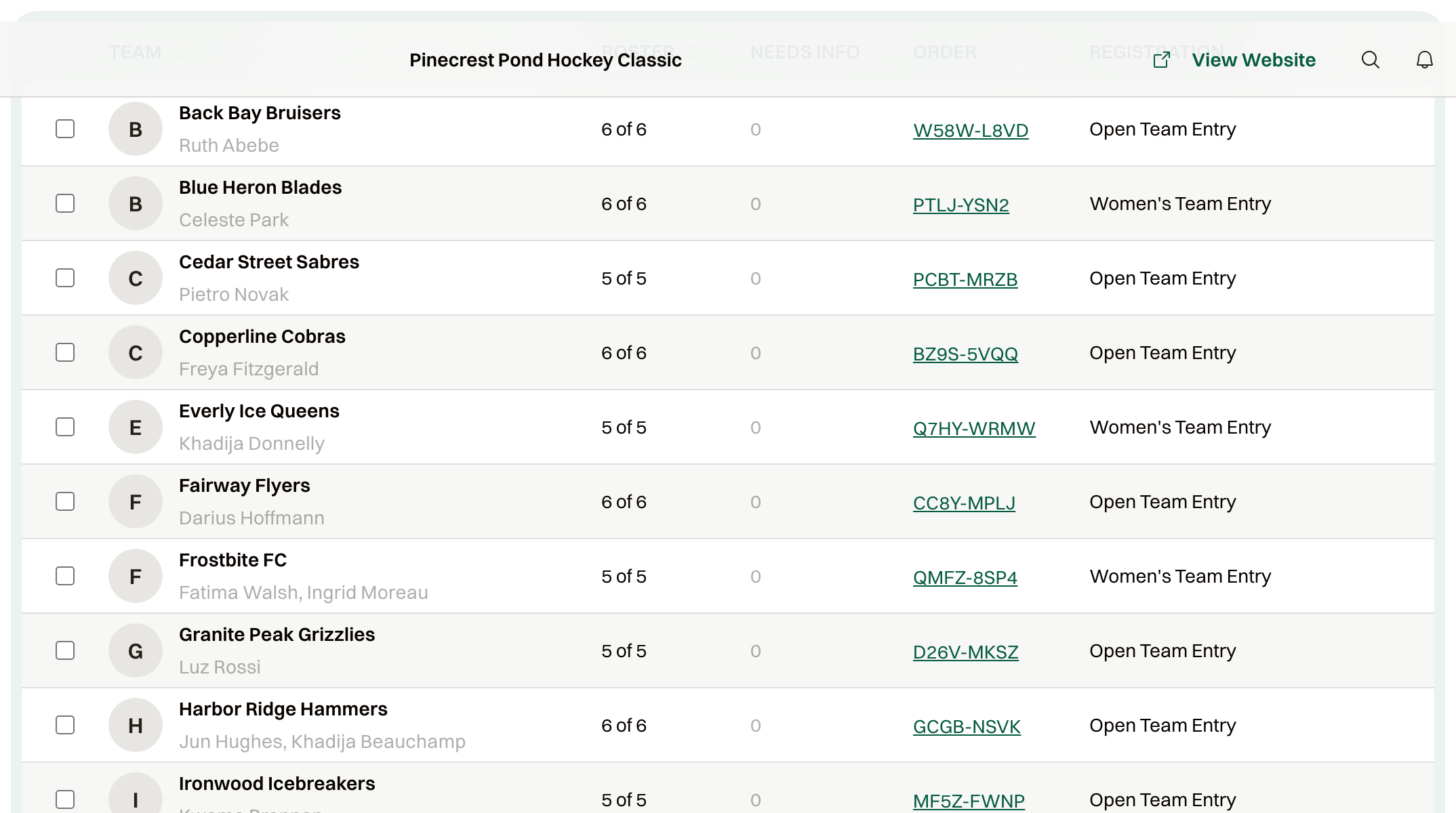
Finish a short roster
Names can be added from the registration link until the item's Participant info deadline. After that, the page says changes are no longer available. Assign to team fills a spot from Free agents.