
Add and manage sponsors
Sponsors sold as sponsorship items, sponsors you add yourself, and logos, bios, and level order.
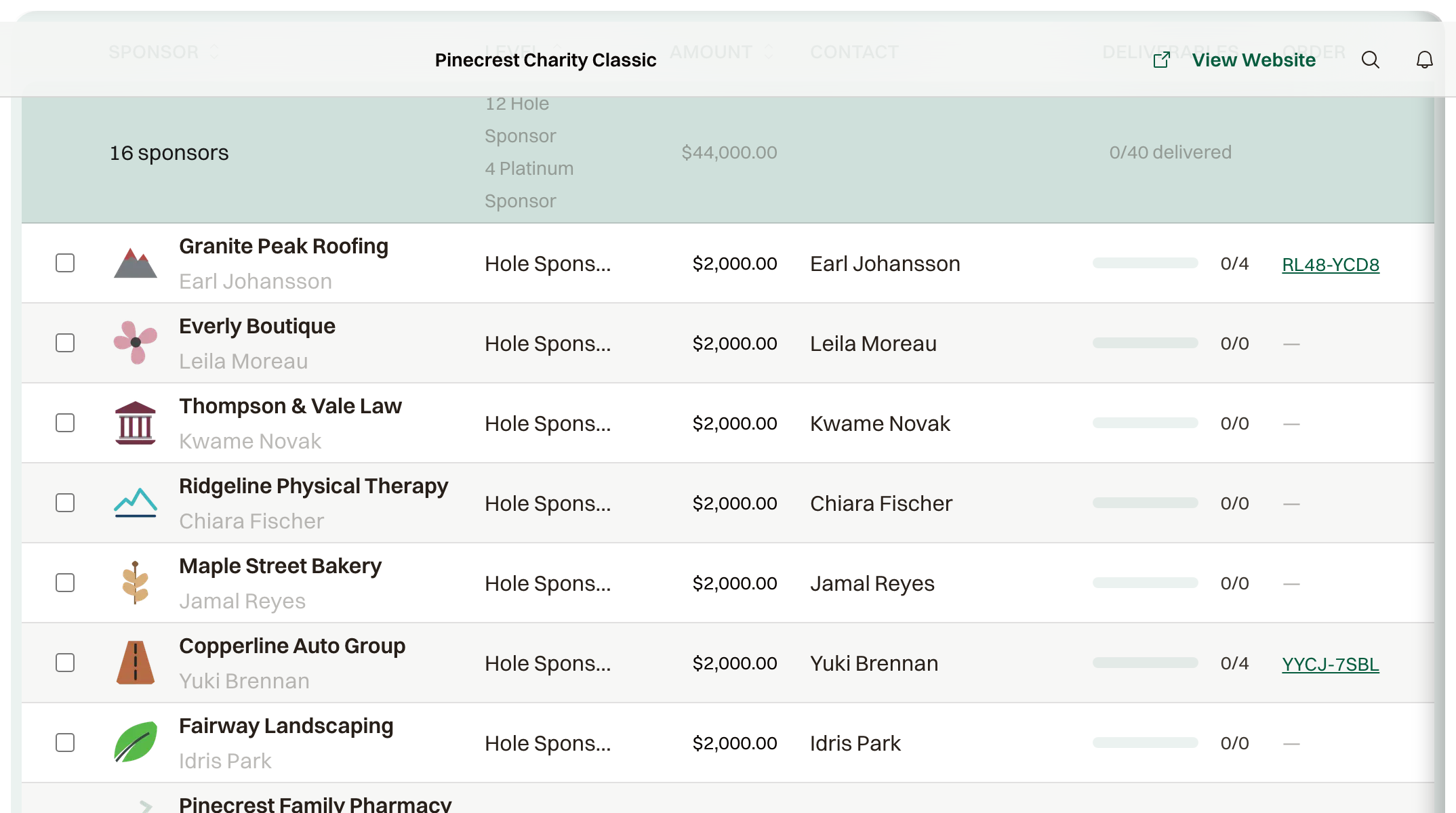
A sponsor gets onto the Sponsors list in one of two ways. When a guest buys a sponsorship item on the website, the sponsor appears with the source Purchase. When you sell one yourself, Add Sponsor picks the sponsorship package and opens New Order, and that sponsor shows as Manual. Filter can show either source.
The level comes from Sponsor Level on the item. The buyer fills company name, logo, website, and bio at checkout. Open the sponsor to change them.
Logo and bio
Update logo, then Upload new logo, takes a PNG, JPG, SVG, or WebP up to 4 MB. Remove logo clears it. Company Bio is the text on the public page.
Hide from website keeps the sponsor on your list and off the public pages. Show on website puts them back. A cancelled sponsorship is already off those pages.
Where they appear
Logos show under Our Sponsors on the homepage. With more than one level, the first is drawn largest. With Supporters Page on, each logo has Learn more, and the nav includes Supporters. The order they appear in is set by level, below.
Display order
Manage Levels sets the order of levels on the public event page, and dragging a level moves it. Sponsors inside a level stay in the order they were added, and a level appears once it has a sponsor on the website. Change level on a purchased sponsor opens the order so you can amend it.
Common questions
The Add Sponsor list is empty
There is no live sponsorship package yet. Create a new sponsorship package at the bottom of that dialog starts one, including its Sponsor Level.