
The participant list
Find everyone registered, see who is still Incomplete, and export the list.
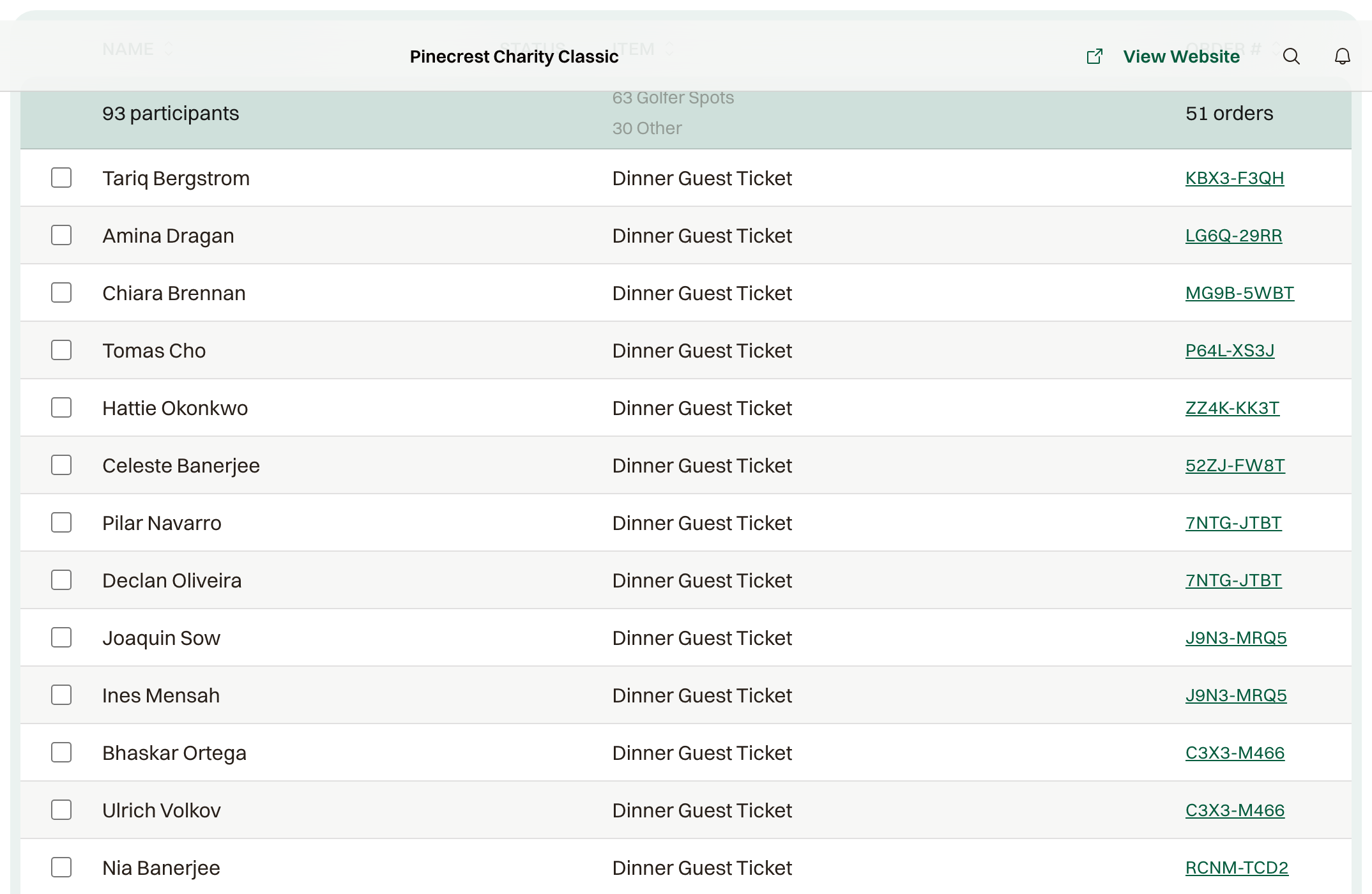
Participants is everyone registered. The list starts with people who attend: golfers, players, and ticket holders. Open Filter and check Include sponsors & packages to show those as well.
Incomplete counts people missing a first name, last name, email, or a required registration field. Click that count to show only them.
The row keeps an Incomplete badge until those are filled. Open the row and edit Participant Details.
Find someone
Search by name. Filter narrows by item, capacity pool, team, check-in, and Incomplete or Complete.
All, By Item, and By Pool change the grouping. A pool card shows how many of that pool are on the list.
Columns turns fields on and off. Name, item, and order number show to start. Email, phone, purchaser, check-in, and participant fields stay off until you turn them on.
Under By Item or By Pool, that group's fields show on their own. A team column appears when the event has teams.
Export
Actions > Export to CSV downloads whoever is on the list now, using the columns you have turned on. Turn on Email before you export if you need addresses. Select rows and choose Export Selected to download only those.
Common questions
Can I check someone in from this list?
Yes. Select rows and choose Check In Selected, or open the person and choose Check In. On the day, Check-in is the faster screen.
Who bought the registration?
Turn on Purchaser. That is the person who placed the order, and it can differ from the participant.