
Publish your event
Activate your event, then publish it. What each step does, what changes, and what to check first.
Run through Before you publish first.
Publishing takes your event out of Practice Mode and opens it to the public. Registration opens, real cards are charged, and confirmation emails go to real guests.
Publish
Once the event is activated, Activate Event is replaced by Publish Event.
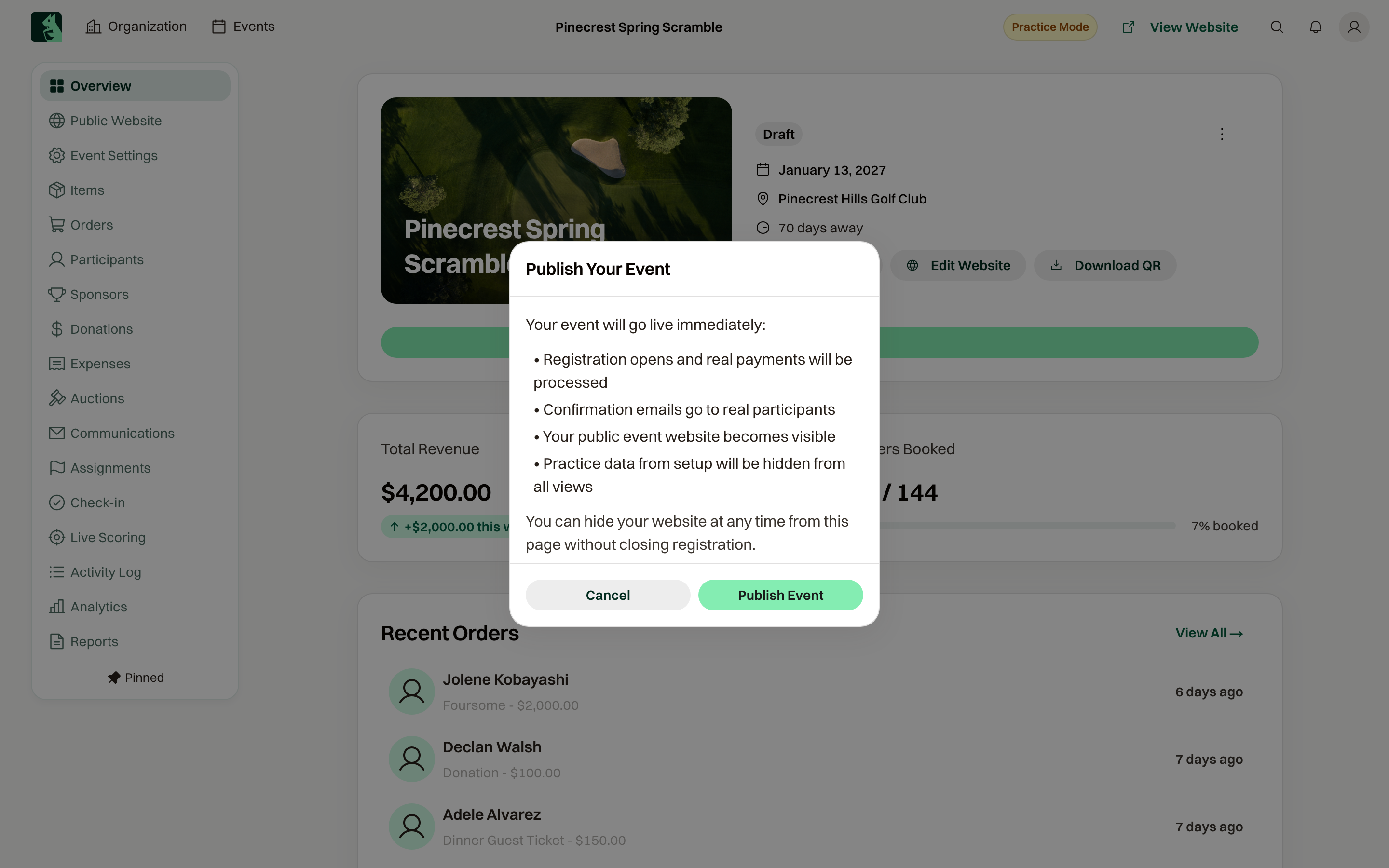
Select it and read the confirmation. It lists exactly what changes:
- Registration opens and real payments will be processed
- Confirmation emails go to real participants
- Your public event website becomes visible
- Practice data from setup will be hidden from all views
If the event has scoring set up, it also says "Practice scoring data will be cleared and scoring will be reset to Ready. You can re-open scoring on event day." If it has a competition set up, it says "Test games will be cleared and stages reset."
Select Publish Event to confirm. The page reloads, the status badge changes from Draft to Registration Open, and the Practice Mode pill disappears.
What changes after you publish
A Website Visibility section appears on the overview, with the line Public website visible. When it's off, the page says "Your event website is hidden from the public. Registration remains open." The publish confirmation also says "You can hide your website at any time from this page without closing registration."
Your Messages page unlocks. Bulk email to participants is now available.
If you need to make changes that require Practice Mode again, the event menu has Move to Draft. That works only while the event has no real orders and no real bids. After the first real registration, the event stays live.
If the overview shows "Payments are not working" after you publish, the payment account is disconnected or misconfigured. Guests can't check out until it's fixed. Select Payment Settings →.