
Build a custom report
Choose columns and filters, save the report, and download a CSV.
A custom report is for a question a preset does not answer. Start from New report, then Custom report, or choose Open in builder on a preset. Event P&L has no builder.
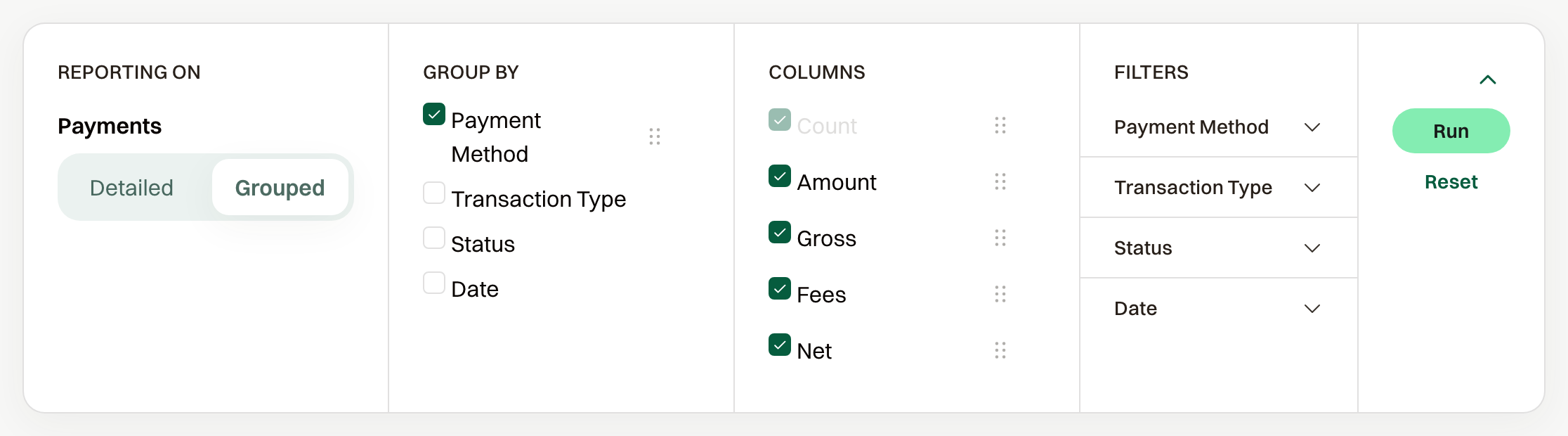
Choose what you are reporting on: Participants, Orders, Payments, or Expenses. Teams and Rosters appear when the event has teams. Then choose Detailed list (one row each) or Grouped totals, and Create.
Columns are the fields on the report. On a grouped report, Group by is how the rows are totaled, and Detailed turns grouping off. Filters narrow the rows. A date filter has From and To.
Run shows the result. The summary under the setup says what you are reporting on and how many filters are on. Download CSV saves that result. It stays off until the report has been run.
Save keeps it under Your reports. Name it in Report name, or in the Save report dialog. Save as keeps a second copy. Delete removes a saved report.
A saved report keeps the columns and filters, and it is listed on every event. Opening it runs that setup against the event you are in.
Count registration answers
Event questions totals answers such as shirt size, item, or check-in. Open it from New report, choose See answers by, and Create opens that count in the builder.