
Templates
System templates send themselves. Custom templates are messages you write once and send again.
Templates holds two kinds of email. System templates send themselves when something happens, such as a registration or a winning bid. Custom templates are messages you write once and pick again from New Message.
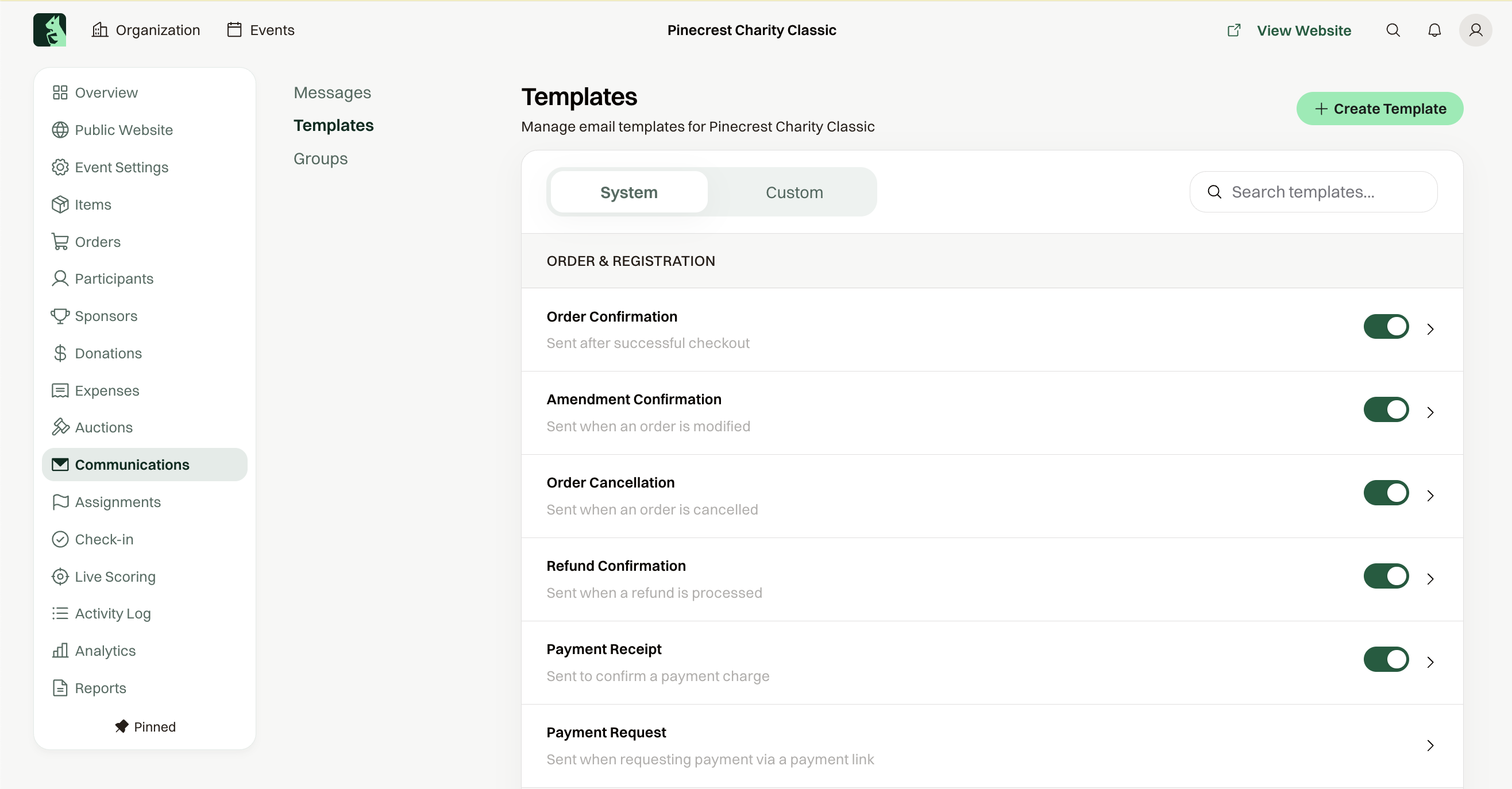
System templates
They are grouped under Order & Registration, Participant Emails, Auction, and Admin Notifications. Each one is on until you switch it off, and switching off stops that email. Payment Request has no switch and sends when you ask someone to pay.
Open a system template to add your own text above what ChipIn fills in. Auto-generated content lists the parts ChipIn adds for you, such as the order summary, and the subject is set for you.
Event Reminder and Post-Event Thanks use the same switches as Reminders. New Order Alert and Refund / Dispute Alert go to your Admins, not to guests.
Custom templates
If you're only sending something once, you don't need a template: choose Start from Scratch in New Message and send it. Save a template when you'll send the same message again, such as a weekly update. Create Template, set Template name and Subject, and it appears under Choose a Template.
What you can insert
The variable button fills in a value for each person: First Name, Last Name, Email, Organization, Event Name, Event Date, Location, Team Name, and Captain Name. Team Name and Captain Name are blank when that person is not on a team.
Order emails also offer the event's custom fields, plus Order #, Order Total, and Registration Link.